Monitor Optimization Guide for LOW input delay
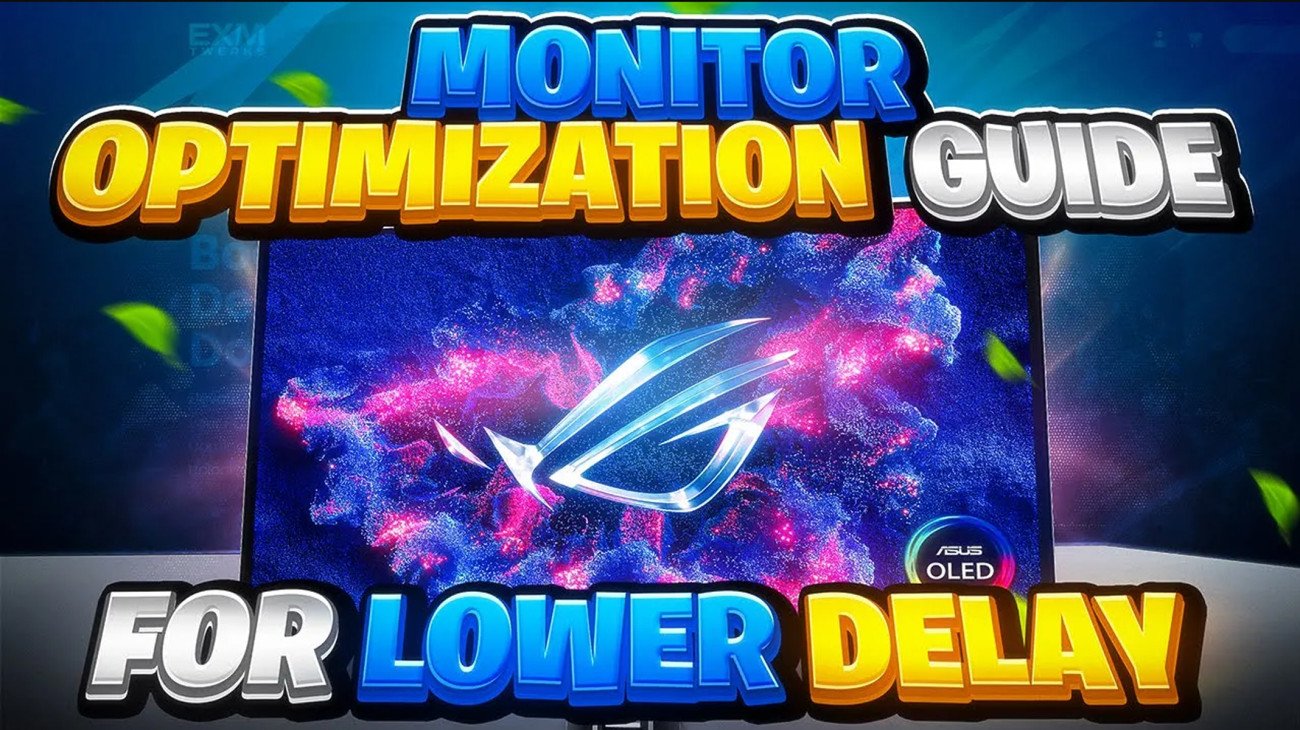
Ultimate Monitor Optimization Guide for Zero-Input Delay
1. Optimize Built-in Monitor Settings
Start by adjusting the settings directly on your monitor using the physical buttons:
Disable Enhancement Features: Turn off features like "Game Enhance Mode" or "Gaming Mode," as they add overhead without significant benefit.
Response Time/Overdrive: Set this to the lowest or fastest possible option (e.g., "Extreme"). If you experience visible ghosting, step it down one level.
G-Sync/FreeSync: It is generally recommended to turn this off to reduce latency, except in specific cases like games, where the reduction in screen tearing is more valuable to you.
Backlight Strobing: Features like ULM, ELM, DAK, or Pure XP should be enabled. While they may add slight latency, they significantly reduce motion blur, which is considered a worthwhile trade-off.
Disable Colour/Image Effects: Turn off all other image processing features, including Black Equaliser, Shadow Boost, HDR, sRGB, Dynamic Contrast, Motion Interpolation, and Noise Reduction. If you need a Low Blue Light mode, use the Windows setting instead of the monitor's built-in feature.
2. Advanced System Tweaks
These system-level adjustments further reduce potential bottlenecks:
Disable Multiplane Overlay (MPO): Running a specific batch file prevents the PC from sending multiple image layers to the GPU. This can resolve issues like flickering, black screens, or stutters.
Full Screen Optimisations (FSO): Ensure FSO is set in the most optimal way to reduce input lag and prevent black screens when using Alt-Tab.
3. Fixing the Refresh Rate with CRU
Many monitors are not set to their full, advertised refresh rate (e.g., they may show 239.47 Hz instead of 240 Hz). This requires a fix using the Custom Resolution Utility (CRU):
Check Current Rate: Navigate to Display Settings → Advanced Display to verify your current refresh rate.
Use CRU: If it's incorrect, use the Custom Resolution Utility to find the highest refresh rate in the extension blocks, edit it, and set the correct refresh rate (e.g., 240).
Apply Change: Run
restart64.exeafter applying the change to restart your graphics driver.
4. Optimize Monitor Timings (Front Porch and Sync Width)
This advanced tweak directly affects how your GPU and monitor coordinate refresh cycles, significantly improving display latency on 240+ Hz monitors:
Access Settings: Find the custom resolution settings in your GPU software (Nvidia Control Panel or AMD Radeon Software).
Adjust Timings: Decrease the Front Porch and Sync Width values. The recommendation is to decrease them in increments of five. If you lower them too much, your display may lose signal, but it should revert automatically after 15 seconds.
5. Essential Final Tips
Use DisplayPort: DisplayPort is recommended in almost all cases over HDMI on PC, as its packet-based transmission generally results in slightly lower latency.
Firmware Updates: Check your monitor manufacturer's website for firmware updates, which can fix bugs and improve features like overdrive tuning.
Primary Port: Plug your main gaming monitor into the primary display port on your GPU. Secondary ports can sometimes be routed through extra controllers, adding delay.
Stable FPS Cap: Do not cap your FPS and refresh rate at a level your PC cannot consistently maintain (e.g., 360 FPS on 360 Hz). Lower both to a stable rate (e.g., 240 Hz/FPS) for better frame pacing and consistent input lag.
15 Mistakes that are killing your Performance
Identify and fix common Windows and PC mistakes that reduce Performance

FULL Discord Optimization & debloat guide
Optimize and debloat Discord for the best performance and lowest latency
Unlock your PC's Full Potential
Upgrade to EXM Premium to completely optimize your PC for maximum FPS and ultra Low input delay!
Completely Optimize Your PC
Unlock over 1,000 safe, but advanced tweaks to optimize every aspect of your system
EXM Game Mode
Automatically maximize FPS and responsiveness in real time when gaming
BIOS Optimization
Directly Optimize Hardware trough BIOS to achieve unmatched performance gains
Advanced Features
Access to all advanced features and optimizations included in EXM, take your PC to a new level
Network Optimization
Optimize internet with advanced tweaks, adapter tuner, bufferbloat modes and more
Priority Support
Get priority assistance from our support team, get help with PC related issues
Monthly, Yearly, Lifetime payment plans available